How to Make a Photo Gallery
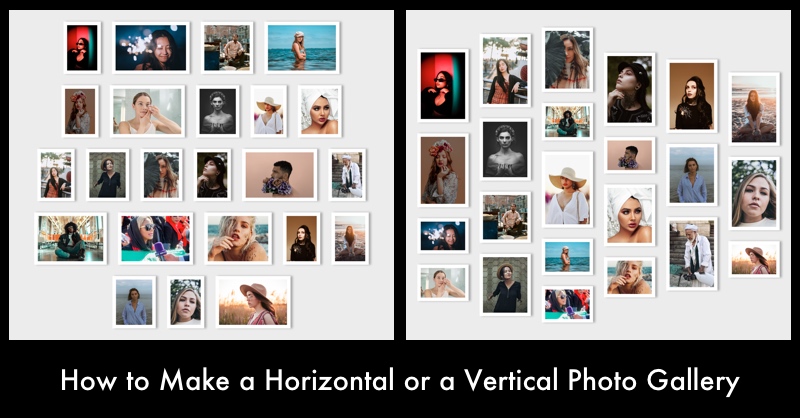
Are you looking to make a photo gallery with pictures arranged horizontally in rows or vertically in columns?
This article will show you how to make a photo gallery using TurboCollage software. (You need TurboCollage v7.1.1 or newer.)
We will design two formats of photo gallery, as shown in the sample images below.
Photo Gallery With Pictures Arranged Vertically in Columns

Photo Gallery With Pictures Arranged Vertically in Columns

If you don't have TurboCollage installed on your computer, download and install it here; it's available for Mac and Windows PC.
Anyone can do it — no design background, no expertise required!
Steps to Make a Photo Gallery:
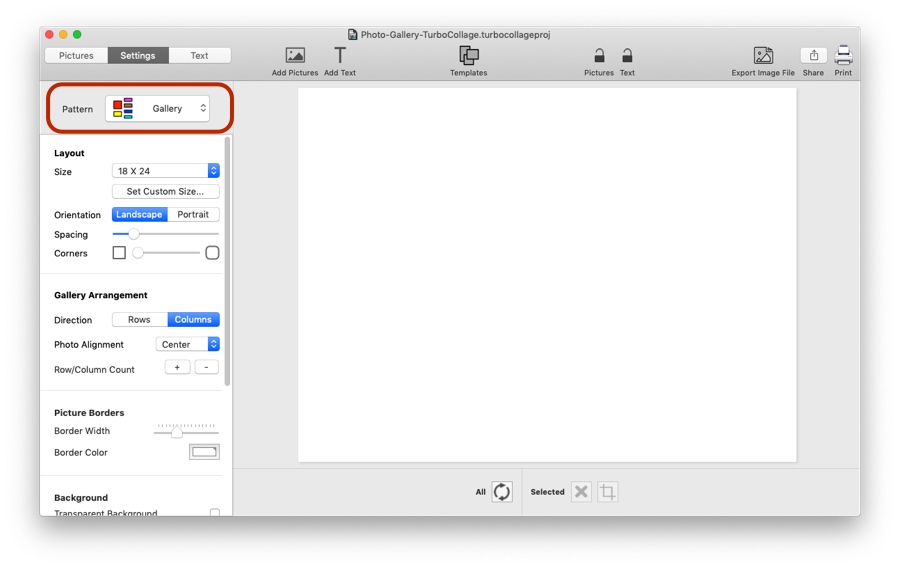
1. Open TurboCollage and set your collage to use the Gallery pattern.
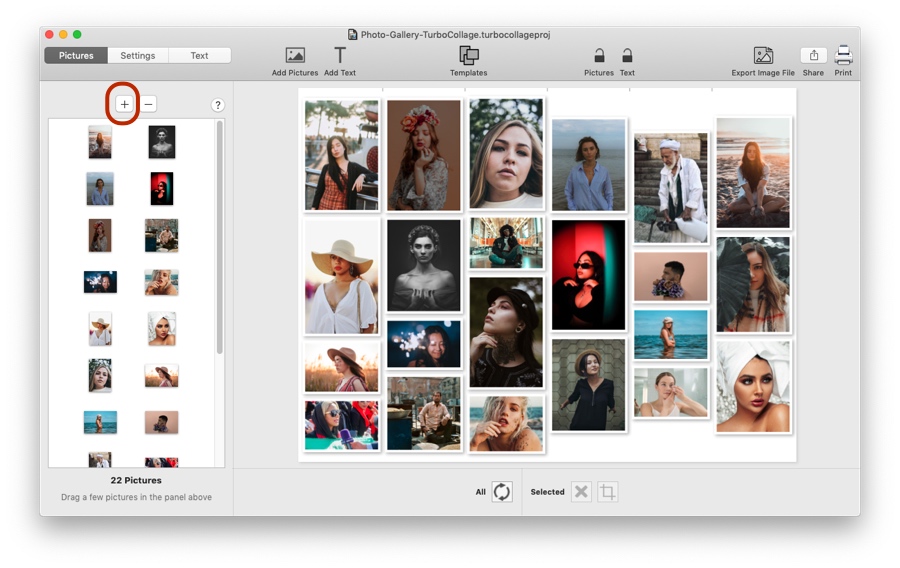
2. Add pictures to your Photo Gallery.
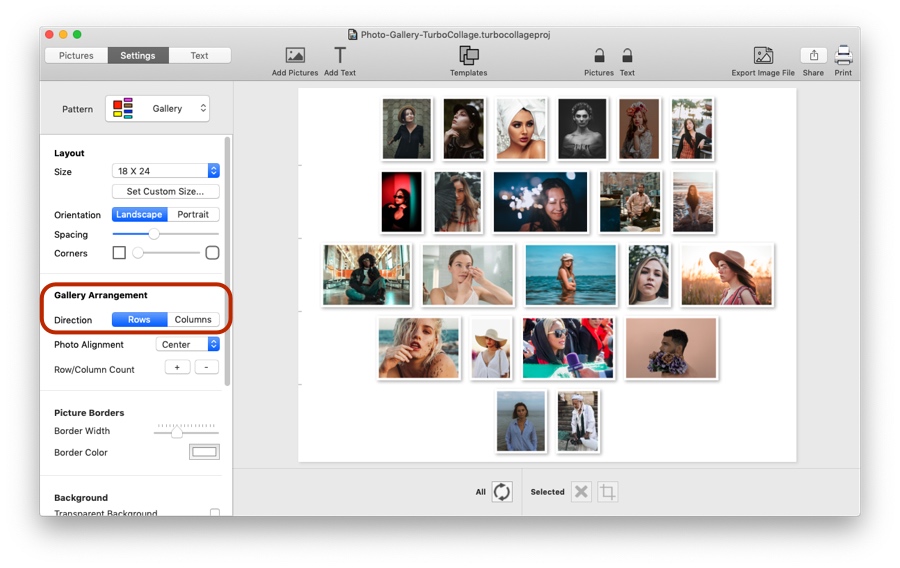
3. Set your gallery to use a row-based or a column-based photo arrangement.
4. You can further customize the photo gallery as shown in the following video:
Tweet This Photo Gallery Making Method